SVG to PNG Converter: The Ultimate Guide to High-Quality Image Conversion
In today’s digital world, images are everywhere. Whether you are building a website, finishing a school project, or sharing a post on social media, you need the right kind of image file. Sometimes, you have a file that just won’t open or look right. This is usually an SVG file. To make it work everywhere, you need to turn it into a PNG.
Using an Online SVG to PNG Converter is the easiest way to solve this problem. In this guide, we will learn everything about these two types of files and how you can convert them for free in just a few seconds.
What is an SVG File? (The Simple Version)
SVG stands for Scalable Vector Graphics. Think of an SVG like a drawing made of math. Because it uses math instead of tiny dots, you can stretch it as big as a house or make it as small as a penny, and it will never get blurry.
Most logos and icons on the internet are SVGs. They are great because they take up very little space and always look sharp. However, not every app or website knows how to read “math drawings,” which is why we often need to change them.
What is a PNG File?
PNG stands for Portable Network Graphics. This is the most popular type of image on the internet. Unlike SVGs, PNGs are made of tiny colored dots called pixels.
The best thing about a PNG is that it supports transparency. This means if you have a logo, you can put it on top of a colorful background, and you won’t see a boring white box around it. PNGs are “universal,” meaning they work on every phone, computer, and social media app in the world.
Why Should You Convert SVG to PNG?
You might wonder, “If SVG never gets blurry, why change it?” Here are the main reasons why people use an SVG to PNG Converter:
1. Better Compatibility
Not all software can open SVG files. If you try to upload an SVG to Instagram or certain email apps, it might show an error. PNG works everywhere. From Microsoft Word to your Grandma’s old computer, a PNG will always open.
2. Social Media Sharing
Most social platforms like Facebook, Twitter (X), and Pinterest prefer PNG or JPEG. If you want to show off a cool logo you designed, converting it to a high-quality PNG is the best way to make sure everyone can see it.
3. Printing Made Easy
Many home printers and even some professional print shops struggle with SVG files because they are code-based. Converting your design to a PNG ensures that what you see on your screen is exactly what comes out on the paper.
4. Smaller File Sizes for Small Images
While SVGs are usually small, sometimes a very complex SVG with many details can actually be a large file. A PNG can often be optimized to be very small, helping your website load faster.
How to Use Our Online SVG to PNG Converter
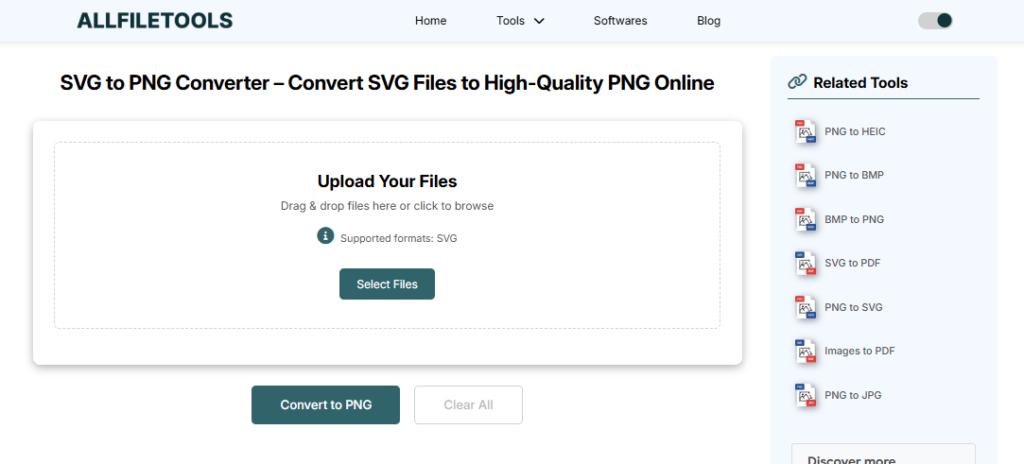
We designed our tool to be so simple that a 4th-grade student can use it without any help. Here is the step-by-step process:
Step 1: Open your browser and go to a trusted site like AllFileTools.com. And use this Tool SVG to PNG Converter
Step 2: Click “Select Files” or “Upload” to choose your SVG file from your device.
Step 3: Select “PNG” as your output format from the settings.
Step 4: Click the “Convert” button and wait a few seconds for the tool to work.
Step 5: Click “Download” to save your new high-quality PNG file to your device.
Features of Our Professional Converter
There are many tools on the internet, but here is why our SVG to PNG Converter Tool is the best choice for you:
1. 100% Free Forever
You never have to pay a penny. There are no hidden fees and no “pro” versions. Everything is available to everyone for free.
2. No Sign-Up Required
We hate long forms just as much as you do. You don’t need to create an account, give us your email, or remember a password. Just visit the site and start converting.
3. Privacy and Security
Your privacy is our number one priority. When you upload a file, it stays on our server for a very short time. Once you finish your conversion and leave the site, our system automatically deletes your files. Your data is safe with us.
4. High-Resolution Output
Some converters make the image look “pixelated” or fuzzy. Our tool ensures the output is High-Definition (HD). We maintain the transparency of your background so your icons stay perfect.
5. Works on All Devices
Whether you are using a Windows PC, a Mac, an Android phone, or an iPhone, our tool works perfectly in your web browser. You don’t need to download any heavy software or apps.
Common Uses for PNG Files
Once you have used the SVG to PNG Converter , what can you do with your new file? Here are some ideas:
- Website Logos: Place your logo in the header of your site with a transparent background.
- Presentation Slides: Use the images in PowerPoint or Google Slides to make your school or work projects look professional.
- Email Signatures: Add a crisp logo to the bottom of your emails.
- Graphic Design: Use the PNGs in tools like Canva or Photoshop to create flyers and posters.
- Mobile Apps: Developers often use PNGs for buttons and menu icons because they load quickly and look great on mobile screens.
SVG vs. PNG: Which One is Better?
To be honest, neither one is “better” overall—they are just used for different things!
| Feature | SVG (Vector) | PNG (Raster) |
| Resizing | Can be stretched forever | Might get blurry if too big |
| Transparency | Yes | Yes |
| Compatibility | Limited | Universal (Works everywhere) |
| Best For | Logos, Icons, Charts | Photos, Web Images, Social Media |
| File Type | Code/Math | Pixels/Dots |
By using a converter, you get the best of both worlds. You can keep your original SVG for editing and use the PNG for sharing.
PNG to SVG Converter – Free Online Image Vectorizer
While converting SVG files to PNG is essential for compatibility, there are many situations where you need to go in the opposite direction—transforming raster images into scalable vector graphics. Need to convert raster images into scalable vectors? Our PNG to SVG Converter makes it simple and fast.
Our tool is designed to make this process effortless and accessible for everyone.
👉 Try it here: https://www.allfiletools.com/png-to-svg/
Why Use It?
- 100% Free & Online
- Fast & Easy to Use
- High-Quality SVG Output
- No Signup Required
Perfect for converting logos, icons, and graphics into scalable, lightweight SVG files for modern websites and design tools.
Give it a try and streamline your workflow 🚀
Tips for the Best Conversion Results
To make sure your images look amazing every time, follow these simple tips:
- Check Your SVG First: Make sure your SVG file isn’t broken or empty before you upload it.
- Naming Your Files: Once you download your PNG, give it a clear name like “Company-Logo-Final.png” so you can find it easily later.
- Use High Quality: Always choose a converter (like ours!) that promises high-quality output so your edges stay smooth.
Frequently Asked Questions (FAQs)
Is it safe to convert SVG to PNG online?
Yes! As long as you use a trusted tool like ours. We use SSL encryption to make sure your connection is private, and we delete files immediately after use.
Will I lose the transparent background?
No. Our converter is smart. If your SVG has a transparent background, the PNG will also have a transparent background.
Can I convert SVG to PNG on my phone?
Yes! Our website is “mobile-friendly.” You can take an SVG from your phone’s gallery or files and convert it while you are on the go.
How long does the conversion take?
Usually, it takes less than 5 seconds. If the file is very large, it might take a few seconds more, but it is always very fast.
Do I need to install any software?
No. This is a 100% online tool. You don’t need to install anything on your computer, which saves you space and keeps your computer fast.
Conclusion: Start Converting Today!
Changing an image format shouldn’t be a headache. Whether you are a professional designer, a small business owner, or a student, our SVG to PNG Converter is here to make your life easier.
It is fast, free, and produces the highest quality images possible. You don’t need to be a tech expert to get professional results. Just upload, convert, and download.
Try it out now and see how easy it is to make your images work for you!
🔹 Explore more powerful file conversion and online utilities at AllFileTools –
🔹 For technical support, digital solutions, and expert services, visit LetDigitalFly IT Services –
🔹 Discover additional career and productivity resources at Resume Slip Builder –